
Guide
How to use uxdeck
From your first frame to a published site: what each part of uxdeck does, how to use it, and why it works the way it does.
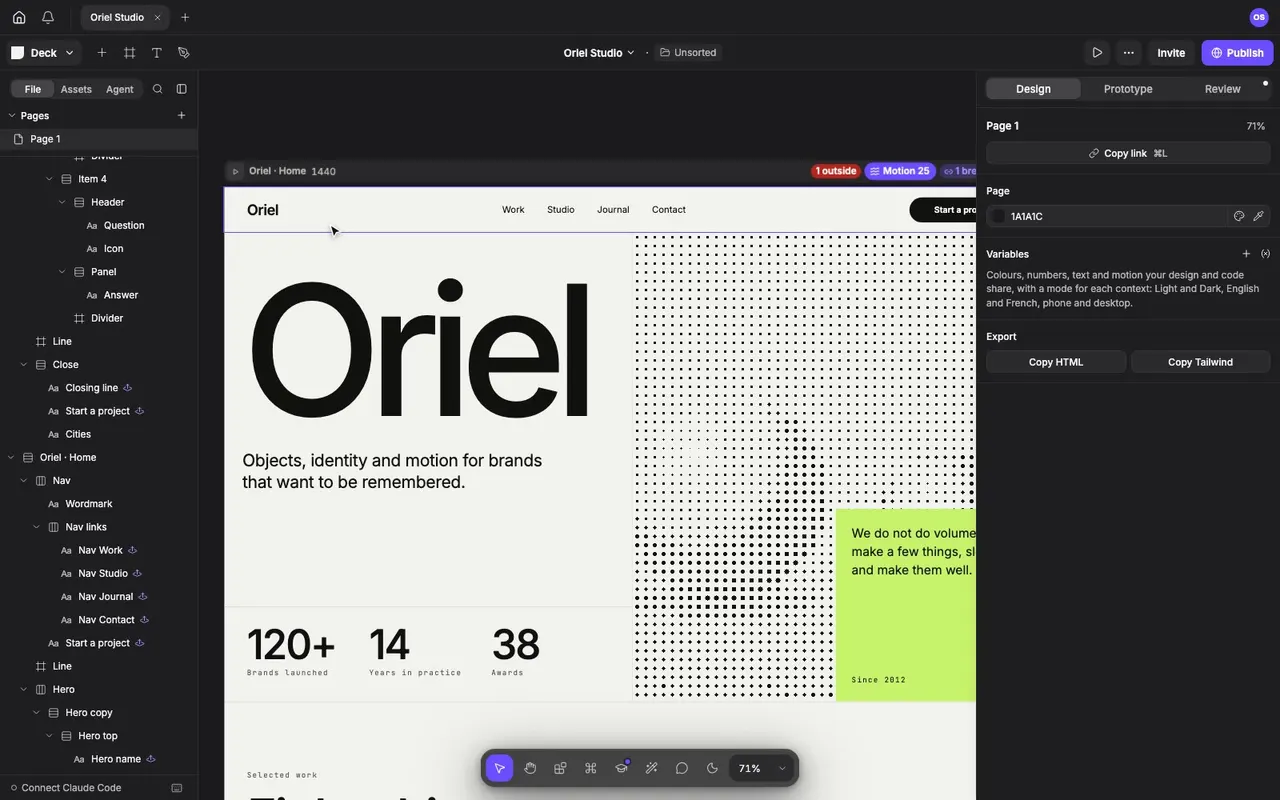
What is uxdeck?
uxdeck is a design canvas in your browser. You draw screens, make them respond to every width with auto layout and breakpoints, link them into a prototype, give them motion, and publish them as a real site at an address of their own, all in one file.
Two helpers sit beside you. The UX coach checks what you make as you go, contrast, tap targets, text size and more, and offers a fix. The agent draws, edits and explains when you ask it in plain words. People you invite work in the same file at the same time, with cursors, comments and voice.
Your files live in your account, not in the browser, so they follow you from one computer to another and to your phone.
What the Guide covers
The topics on the left follow the order you will meet things in. Each section covers:
- Get started: Home, the editor and its panels, Quick actions, installing uxdeck as an app and keeping versions.
- Draw and edit: Frames, sections, layers, shapes and the pen, text, fills and strokes, pictures and video, and editing several layers at once.
- Layout and systems: Auto layout and breakpoints, so one design fits every width; components, variants, variables and styles, so it stays consistent.
- Prototype: Linking screens, interactions, overlays, interactive components and Preview.
- Motion: Appear on scroll, While scrolling, text that splits as it moves, formations, loops, pins, cursors and loaders.
- Effects: Picture effects and hover effects for text and buttons, from the Effects library.
- Blocks: Carousels, accordions, notices, a showreel, a media grid, a 3D ring and a text cylinder that work on your site.
- Work together: Sharing, live cursors, comments, notifications, voice, teams and uxdeck on your phone.
- Coach and agent: The UX coach and its rules, checklists, the agent, and connecting AI tools.
- Publish and export: Publishing a site, its settings, your own domain, analytics, code export and importing Figma files.
- Account and plans: Signing in, settings, what Free and Pro include, agent credits and seats.
- Reference: Every keyboard shortcut, the words uxdeck uses, and typing values with maths and units.
- Troubleshooting: What a message means, working offline, browsers and devices, and big files.
Topics marked Soon are being written. The rest are checked against uxdeck as it is today.
Your first hour
- Make a file. On Home, press New file. It opens on an empty page.
- Draw a frame. Press F and choose a size from the Design tab, or drag one out on the canvas.
- Lay it out. Put text, shapes and pictures inside, select the frame and press ⇧A for auto layout, so it grows with what is inside.
- Make it reusable. Turn a button into a component with ⌥⌘K, then give it variants for its states.
- Give it motion. In the Prototype tab, add While scrolling to a picture and drag the scroll bar beside the frame to watch it.
- Play it. Press ⌥⌘↩ to open Preview, and use it as your visitors will.
- Publish it. Press Publish at the top right. The coach makes a last check, and the site goes live at its own address.
How the articles work
Every article names the date it was last checked against uxdeck, uses the same words as the app, and lists what each plan allows and the catches worth knowing before they surprise you. Short clips show the steps; they play as you reach them.
Press ⌘K or / to search, and Copy page on any article to take it as Markdown, for your notes or an AI tool.
Getting help
Something in uxdeck not doing what an article says, or a question the Guide does not answer yet? Write to contact@uxdeck.app. For design itself, how to choose type, spacing and colour, uxspot's Learn UX is the place.